
Add Member in UP Family ID: Easy Online Process in 2026
Do you need to add a newborn baby or Add Member in UP Family ID, spouse, or missing family member to your UP Family ID?
You can submit the request through the UP Family ID Update Module. Sign in using your registered mobile number, open the Family ID update section, select the option to add a member, and complete the requested verification.
The option is generally used when:
The exact information or supporting document requested may depend on why you are adding the person.
Quick answer: Sign in to the official UP Family ID portal, open Family ID Update/Access Passbook, complete Aadhaar verification, choose the member addition option, enter the new member’s details, and submit the request. Learn how to add member in UP Family ID online with simple login steps, required details, documents, OTP verification, update section, and avoid common errors
What Is the UP Family ID?
The UP Family ID is a family identification system introduced by the Government of Uttar Pradesh.
It helps the government identify families and connect eligible residents with welfare schemes and public services. Families that do not have a ration card can apply for a 12-digit Family ID through the official portal.
Keeping the record updated is important because an incomplete family record may create problems when a family member applies for a government benefit.
Who Can Be Added to an Existing Family ID?
The official Update Module mentions Add Member in UP Family ID in three main situations.
Parents can submit a request to include a baby born after the Family ID was created.Keep the baby’s birth information and the parents’ Aadhaar details ready. The portal may ask for supporting birth information during the process.
A husband or wife may need to be added after marriage.Make sure the spouse’s name, date of birth, and other personal details match their Aadhaar record. Proof of marriage or relationship may also be requested.
Sometimes a person living in the family is accidentally left out while creating the original Family ID. The Update Module can be used to request the addition of such a member. You may need to provide Aadhaar verification and information showing the person’s relationship with the family.
Details to Keep Ready
Before starting, collect the basic information of the person you want to Add Member in UP Family ID.
You may need:
The portal may ask for additional information depending on the type of request.
Important tip
Do not use nicknames or different spellings.
For example, if the Aadhaar card says “Mohd Arif,” do not enter “Mohammad Arif” unless the Aadhaar record has also been corrected. Even a small mismatch can create an authentication or verification problem.
Step-by-Step Process to Add Member in UP Family ID
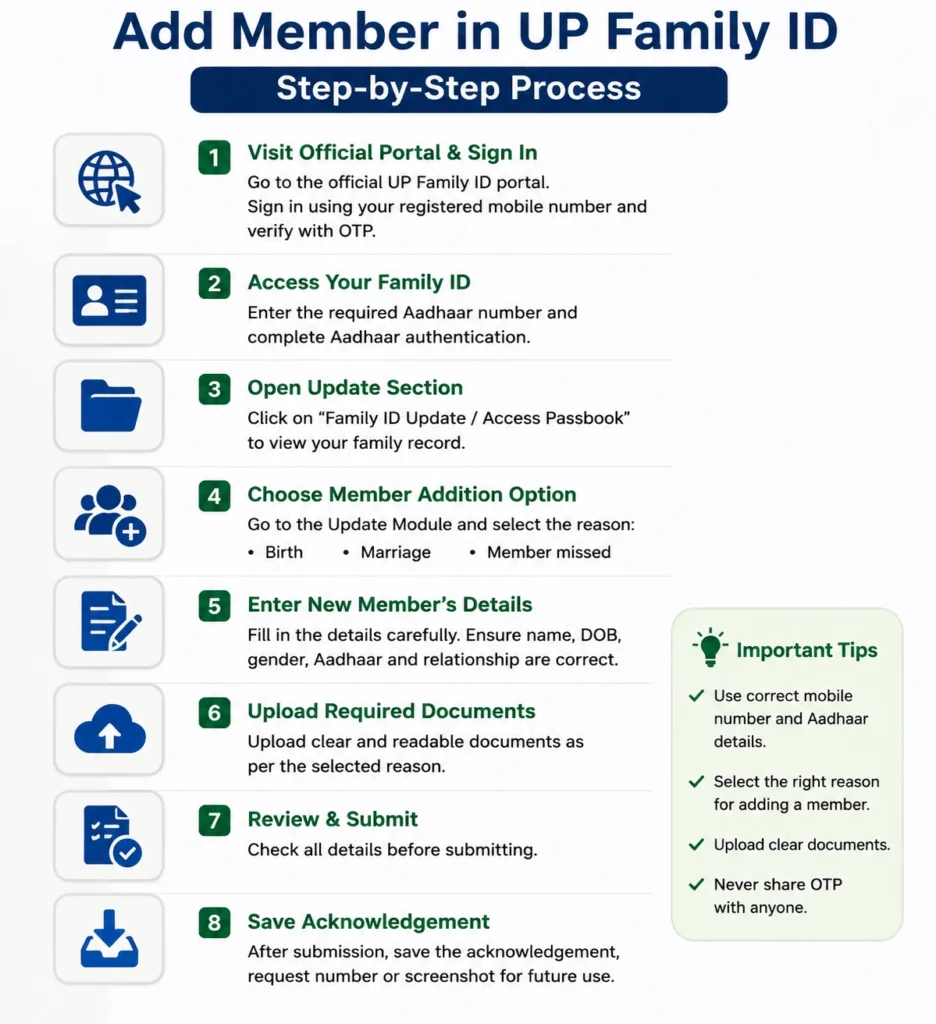
Open the official portal
Visit the official Uttar Pradesh Family ID portal.
Check the website address carefully before entering your Aadhaar number, mobile number, or OTP. Avoid unofficial websites that ask for unnecessary personal information or payment.
Select Sign In
Choose the Sign In option on the homepage.
Enter the mobile number registered with the Family ID and request an OTP.
Verify the OTP
Enter the OTP received on the registered mobile number.
Complete the captcha and continue to the account dashboard.
Never share the OTP with an agent, caller, or unknown person.
Access your Family ID
After signing in, enter the Aadhaar number requested by the portal to view or access the family record.
Complete Aadhaar authentication as shown on the screen.
Open the update section
Select Family ID Update/Access Passbook.
This section allows you to view the family record and use the available update services.
Choose the member addition option
Open the Update Module and select the option for adding a family member.
Choose the correct reason, such as:
1.Birth 2.Marriage
3.Member missed during Family ID 4.creation
Selecting the correct reason helps the system request the right details.
Enter the new member’s information
Fill in the details carefully.
The name, date of birth, gender, and Aadhaar information should match the person’s official records.
Check the relationship field as well. Do not select an incorrect relationship just to complete the form quickly.
Provide the requested proof
Upload or provide the supporting information requested on the portal.
The requirement may change according to the reason for addition. For example, the information needed for a newborn may be different from the information needed for a spouse.
Use clear and readable files. Avoid dark, cropped, or blurred images.
Review the application
Read every entry before submitting the request.
Pay special attention to:
1.Aadhaar number 2.Name spelling
3.Date of birth 4.Relationship
5.Mobile number 6.Reason for adding the member
Correcting an error before submission is easier than fixing it after verification begins.
Submit and save the details
Submit the request after completing the required verification.
Save the acknowledgement, request number, screenshot, or SMS received after submission. It may be needed to check the request later.
How to Check the Member Addition Status
Sign in to the official portal again using the registered mobile number.
Open the update, application, or passbook section and check whether the request is:
The wording shown on the portal may vary.
There is no need to submit another request immediately if the first one is still under verification. Duplicate requests can make the issue more confusing.
How Long Does Member Addition Take?
The portal may need time to verify the submitted information.
Some unofficial websites provide fixed estimates such as 7–10 or 7–14 working days. However, the actual time can depend on Aadhaar authentication, document verification, application load, and local administrative checks.
It is safer to follow the status shown in your official account instead of relying on a guaranteed timeline.
What to Do If the Add Member in UP Family ID Option Is Not Showing
First, make sure you have signed in to the correct Family ID account.
Then try these steps:
Open Family ID Update/Access Passbook.
Complete Aadhaar authentication if it is pending.
Check whether the Family ID has already been generated.
Sign out and log in again.
Clear the browser cache or use another updated browser.
Try from a desktop or laptop if the mobile page is not loading correctly.
The services shown on the dashboard may also depend on the current status of the Family ID.
Common Problems and Easy Solutions
Check if your mobile number is correct and active. Wait a minute before retrying. Also make sure your network is stable and SMS is not blocked.
If Aadhaar is not linked to your current mobile number, OTP verification may fail. In this case, update your mobile number at an authorised Aadhaar centre.
Double-check your Aadhaar details. Name, date of birth, and gender must exactly match Aadhaar records.
The Aadhaar may already be attached to another family ID. Avoid multiple applications and first check the existing record.
Upload a clear, full image of the document. Make sure all details like name, number, and issuing authority are visible.
Helpful Tips Before You Submit
Match every detail with Aadhaar
This is the most important step. Check the spelling, date of birth, and gender before submitting the application.
Use the correct reason
Select birth for a newborn, marriage for a spouse, and missed-member addition when the person was left out during registration.
Keep clear copies ready
Prepare readable images or PDF files before opening the portal. This prevents the session from expiring while you search for documents.
Save the acknowledgement
Take a screenshot of the confirmation page and keep any application number or SMS safely.
Use only the government portal
Do not enter Aadhaar details or OTPs on websites that only look similar to the official portal.
Avoid paying unknown agents
The online government service should be accessed through the official platform. When taking help from a service centre, ask about any service charge before submitting the application.
Can You Add a Member Through a Jan Seva Kendra?
You may visit a nearby authorised Jan Seva Kendra or Common Service Centre when you cannot complete the online process yourself.
Take:
Check every detail entered by the operator before allowing the final submission.
Most importantly, enter the OTP yourself. Do not tell it to anyone unnecessarily.
Frequently Asked Questions About Add Member in UP Family ID
Conclusion
Add Member in UP Family ID is easier when all details match the person’s Aadhaar and supporting records.
Sign in through the official portal, open Family ID Update/Access Passbook, choose the correct reason for adding the person, and check every entry before submitting. Keep the acknowledgement safely and use the portal’s status section for updates. This simple care can help you avoid authentication errors, document rejection, and unnecessary repeat applications.


