
How to Add a Member in UP Family ID – Simple Online Guide
UP Family ID (also called Parivar Pehchan Patra) is a special family identity system used in Uttar Pradesh for welfare schemes and benefits. When your family grows — like a new baby, a new spouse, or another relative moving in — you should add them in your Family ID account
This guide explains how to do that easily, what documents you need, and what to watch out for. Learn how to Add a Member in UP Family ID online with easy steps, tips, mistakes, and FAQs to avoid errors and complete the process fast simple online guide.
Why You Should Add a Member in UP Family ID
Your UP Family ID keeps track of your household details for government benefits. You should update it when:
A child is born
Someone gets married and joins your family
You adopt someone
A family member was accidentally left out before
Keeping your Family ID current helps avoid delays or rejections when applying for benefits later.
What You Need Before You Begin
Before adding someone, keep these ready:
Tip: If the new member doesn’t yet have Aadhaar (like a newborn), you can still add them and update it later.
How to Add a Member in UP Family ID
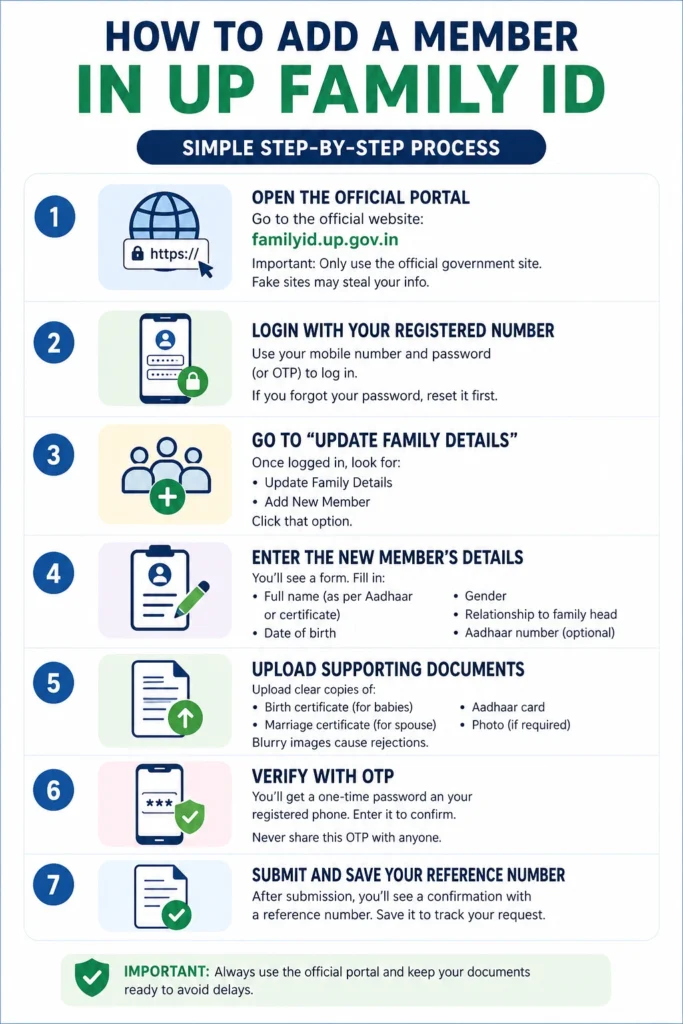
Here’s the simple process step by step of how to Add a Member in UP Family ID:
Open the Official UP Family ID Portal
Go to the official website: familyid.up.gov.in
Important: Only use the official government site. Fake sites may steal your info.
Login With Your Registered Number
Use your mobile number and password (or OTP) to log in.
If you forgot your password, reset it first.
Go to “Update Family Details”
Once logged in, look for:
1.Update Family Details
2.Add New Member
3.Click that option.
Enter the New Member’s Details
You’ll see a form. Fill in:
1.Full name (as per Aadhaar or certificate)
2.Date of birth
3.Gender
4.Relationship to family head
5.Aadhaar number (optional)
Upload Supporting Documents
Upload clear copies of:
1.Birth certificate (for babies)
2.Marriage certificate (for spouse)
3.Aadhaar card
4.Photo (if required)
Blurry images cause rejections.
Verify With OTP
You’ll get a one-time password on your registered phone. Enter it to confirm.
Never share this OTP with anyone.
Submit and Save Your Reference Number
After submission, you’ll see a confirmation with a reference number. Save it to track your request.
After You Submit – What Happens Next
After adding a member:
Once approved, the new member shows up in your Family ID.
Common Mistakes to Avoid
Wrong name spelling → Match exactly with official documents
Low-quality photo or document → Use good lighting and clear scans
Wrong relationship details → Double-check before submitting
OTP not received → Make sure your mobile number is active
Using unofficial portals → Always use the government site only
Following these steps helps your application get approved faster.
Tracking Changes and Updates in Family ID
You can track any changes you submit by logging into your Family ID account. Look for a section called “Application Status” or “Pending Requests.” This helps you know whether your request is approved, rejected, or needs corrections. Save the reference number for quick tracking.
Updating Multiple Family Members at Once
If several members need to be Add a Member in UP Family ID (like newborn twins), you should add them one at a time. Each submission will have a separate reference number. This ensures each record is verified properly and avoids mistakes or rejections.
Common Problems & Fixes
Here are things people often do wrong:
Wrong name spelling → Match exactly with official documents
Low-quality photo or document → Use good lighting and clear scans
Wrong relationship details → Double-check before submitting
OTP not received → Make sure your mobile number is active
If something still goes wrong, try again later or visit your nearest Jan Seva Kendra or CSC for help.
Safety Tips When Updating Info
Use only the official UP Family ID portal
Never share your OTP with anyone
Avoid public computers
Keep logged out once done
Keep a copy of documents you upload
No official staff should ask for your password or OTP. If they do, stop and report it.
Quick Tips That Help
FAQs About Add a Member in UP Family ID
Final thoughts
Add a Member in UP Family ID is straightforward if you follow the right steps and keep your documents ready. Do it as soon as your family changes so your UP Family ID stays up to date and benefits reach everyone without delay.


